








Ehrlich gesagt wussten viele Leute gar nicht, dass ihr PC Windows 11 nicht unterstützt – bis sie das Upgrade versucht haben und ein klares Nein bekommen haben. Keine richtige Erklärung, nur eine Meldung, dass der Computer nicht kompatibel ist. Und dann fängt das Googeln an – meistens so etwas wie „kann mein PC Windows 11″ um Mitternacht.
Aber „nicht kompatibel“ bedeutet nicht immer das, was man denkt. Manchmal ist es nur eine Einstellung, die ausgeschaltet ist. Ob dein PC für Windows 11 geeignet ist, lässt sich in etwa zwei Minuten herausfinden – und dieser Leitfaden führt dich durch alles.
Windows 11 Systemanforderungen im Überblick
Windows 11 ist nicht nur eine Frage der Geschwindigkeit. Microsoft hat eine ziemlich genaue Liste aufgestellt, was der PC haben muss, bevor es das Upgrade überhaupt in Betracht zieht. Das meiste davon ist ziemlich unkompliziert. Aber es gibt eine Anforderung – TPM 2.0 – über die niemand wirklich spricht, bis sie einen blockiert. Dazu kommen wir gleich.
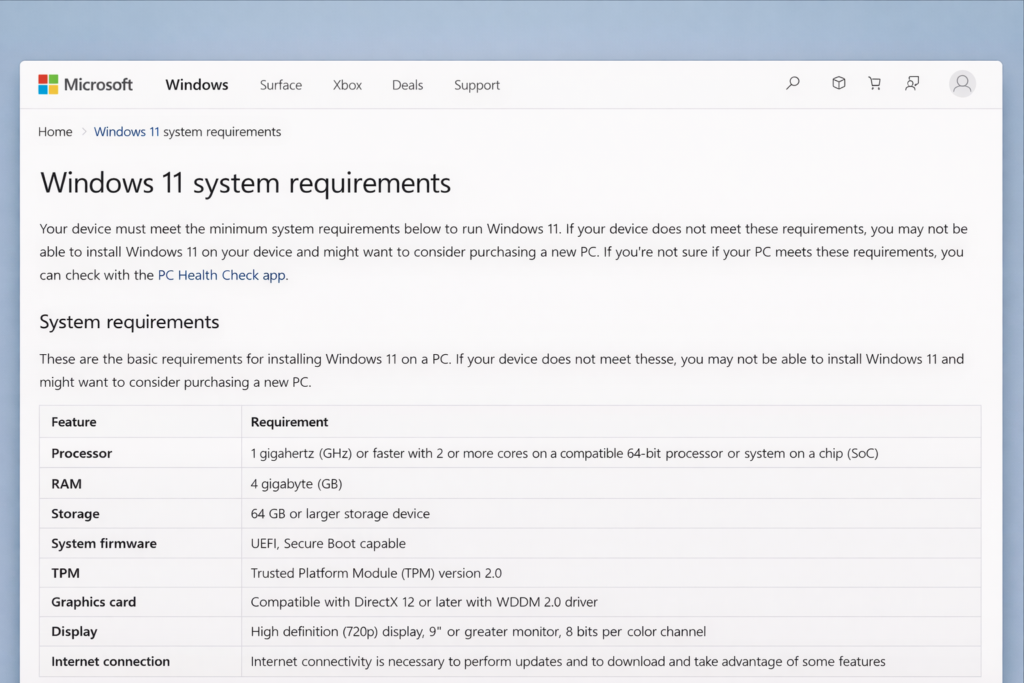
Um herauszufinden, ob dein PC für Windows 11 geeignet ist, hier die vollständige Checkliste von Microsoft. Dein Rechner muss alle davon erfüllen, nicht nur die meisten:
Prozessor: 1 GHz oder schneller, mindestens 2 Kerne, 64-Bit. Wenn dein PC nach 2017 gebaut wurde, bist du hier wahrscheinlich auf der sicheren Seite. Bei älteren Intel Core i3, i5 oder i7 Chips von etwa 2015 und früher fängt es an, kompliziert zu werden.
RAM: Mindestens 4 GB. Wer noch 2 GB hat, wird die Installation nicht starten können.
Speicher: 64 GB freier Speicherplatz. Nicht die Gesamtgröße der Festplatte, sondern freier Speicher konkret. Lohnt sich, das als erstes zu prüfen.
Systemfirmware: UEFI mit Secure Boot. Das ist eine BIOS-Einstellung. Die meisten PCs ab 2012 unterstützen das, auch wenn es noch nicht eingeschaltet ist.
TPM: Version 2.0. Das ist der große Punkt und der, der die meisten verwirrt. TPM ist ein Sicherheitschip, der in die meisten modernen Motherboards eingebaut ist – er kümmert sich um Verschlüsselung und sicheres Booten. Das Problem ist, dass er auf vielen PCs standardmäßig deaktiviert ist. Dein PC könnte also tatsächlich mit Windows 11 kompatibel sein, ohne dass du es weißt, weil TPM einfach ausgeschaltet ist. Mehr dazu gleich unten.
Grafik: DirectX 12 kompatibel mit einem WDDM 2.0 Treiber. Praktisch jede Grafikkarte aus dem letzten Jahrzehnt besteht das.
Display: 720p, mindestens 9 Zoll. Kein normaler Monitor oder Laptop-Bildschirm wird hier scheitern.
Internet: Für die Windows 11 Home-Einrichtung erforderlich. Bei Windows 11 Pro lässt es sich umgehen, auch wenn es ein paar zusätzliche Schritte erfordert.
Realistischerweise sind die beiden Dinge, die die meisten PCs ausschließen, die Prozessorgeneration und TPM 2.0. Alles andere auf dieser Liste ist selten das eigentliche Problem. Wenn du dir bereits ziemlich sicher bist, dass dein Rechner die Anforderungen erfüllt und nur noch die Lizenz klären musst, ist ein echter Windows 11 Lizenzschlüsse kaufen l eine sichere Wahl.
Kompatibilität prüfen mit dem PC-Integritätscheck
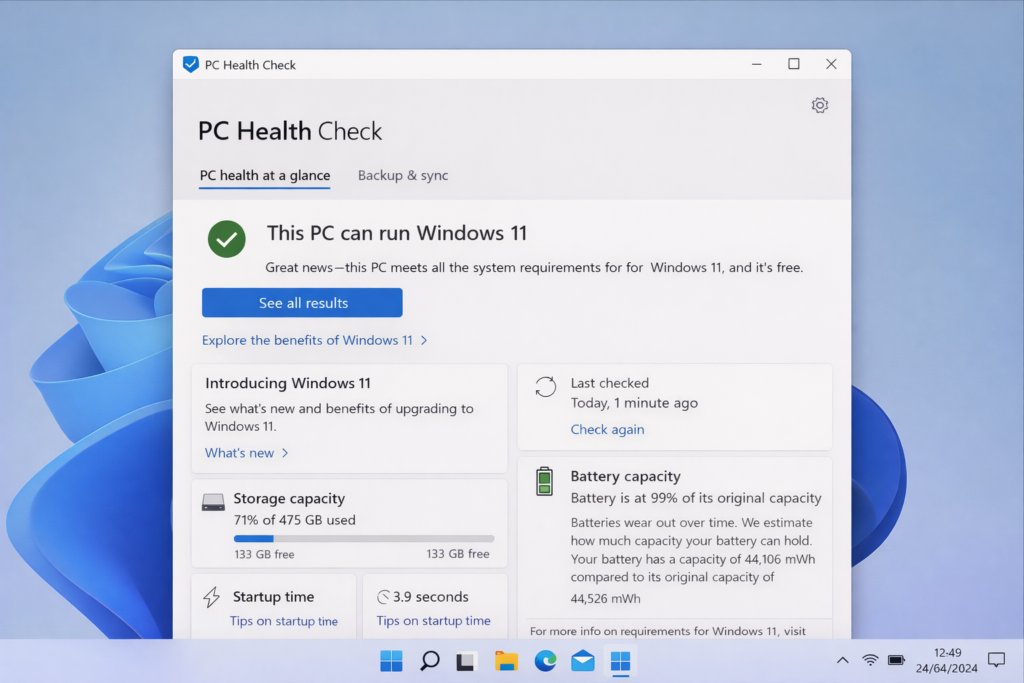
Microsoft hat genau dafür ein kostenloses Tool entwickelt. Es heißt PC-Integritätsprüfung und ist im Grunde Microsofts eigene Antwort auf die Frage „kann mein Computer Windows 11″ – sagt dir in etwa 30 Sekunden, ob du gut aufgestellt bist oder nicht.
Nach „PC-Integritätsprüfung“ im Startmenü suchen. Wenn es nicht da ist, kostenlos von microsoft.com/de-de/windows/windows-11 herunterladen. Öffnen, auf „Jetzt prüfen“ klicken und es läuft automatisch durch alles durch. Entweder sagt es dir, dass du startklar bist, oder es spuckt eine Liste dessen aus, was dich blockiert.
Wenn das Tool TPM als Problem anzeigt, schreib deinen PC noch nicht ab. Erinnerst du dich an den Chip, den wir erwähnt haben – den, der oft einfach standardmäßig ausgeschaltet ist? Das ist wahrscheinlich alles, was das bedeutet. Neun von zehn Mal bedeutet es nur, dass TPM im BIOS deaktiviert ist, nicht dass dein PC überhaupt nicht mit Windows 11 kompatibel ist.
So prüfst du das: PC neu starten und ins BIOS. Das machst du, indem du F2, F10, Entf oder Esc direkt beim Start des Computers drückst – das hängt vom Hersteller ab, also probiere sie aus, wenn eine nicht funktioniert. Sobald du drin bist, nach einem Abschnitt namens Sicherheit, Erweitert oder Trusted Computing suchen. Die TPM-Einstellung könnte als „TPM-Gerät“, „Sicherheitsgerät“, „Intel PTT“ auf Intel-Rechnern oder „AMD fTPM“ auf AMD erscheinen. Wenn es Deaktiviert anzeigt, auf Aktiviert umschalten, speichern und beenden. Dann den PC-Integritätscheck erneut ausführen.
Eine riesige Anzahl von Leuten, die denken, ihr PC kann Windows 11 nicht ausführen, behebt das Problem genau dort, indem sie einfach TPM aktivieren. Es lohnt sich immer, das zu prüfen, bevor man das Schlimmste annimmt. Wenn du erst einmal in Betrieb bist, lohnt es sich auch zu wissen, wie man Windows 11 auf vollen Touren hält, besonders auf älterer Hardware, wo die Dinge schneller langsamer werden können.
Wenn Secure Boot ebenfalls angezeigt wird, ist es die gleiche Art von Fix – ins BIOS gehen, Secure Boot finden, einschalten. Nur vorher überprüfen, ob das Laufwerk auf UEFI-Modus statt Legacy oder CSM eingestellt ist, sonst könnte der PC danach nicht mehr starten. Wenn du dir nicht sicher bist, deinen spezifischen PC-Modellnamen plus „Secure Boot aktivieren“ suchen – das ist für so gut wie jede Maschine gut dokumentiert. Und wenn Windows Update während oder nach dem Upgrade Probleme macht, ist der Windows Update Fehlerbehebungsleitfaden ein guter, den man gespeichert haben sollte.
Mein PC ist nicht kompatibel – was nun?
Du hast also alles gemacht – den PC-Integritätscheck ausgeführt, „kann mein Computer Windows 11″ gegoogelt, im BIOS herumgegraben – und die Antwort ist immer noch nein. Dein PC ist nicht kompatibel mit Windows 11. Es gibt immer noch etwas, das du dagegen tun kannst.
Option 1: Vorerst bei Windows 10 bleiben – aber einen Plan haben
Windows 10 hat im Oktober 2025 das Ende des Mainstream-Supports erreicht, also sind kostenlose Sicherheitsupdates von Microsoft vorbei. Es läuft im Alltag noch gut, aber es langfristig ohne Patches zu lassen ist nicht ideal. Wenn dein PC ansonsten gut läuft, ist es eine vernünftige Entscheidung, kurzfristig bei Windows 10 zu bleiben, während du deinen nächsten Schritt planst – lass es nur nicht für immer so. Eine ordentliche Windows 10 Pro Lizenz kaufen ist es wert, wenn du noch eine Weile dabei bleibst.
Option 2: Hardware upgraden
Wenn das Einzige, was zwischen dir und Windows 11 steht, dein Prozessor ist, ist das Upgraden der CPU oder des Motherboards technisch eine Option – aber das hängt stark davon ab, was für eine Maschine du hast. Bei einem Desktop ist es ziemlich machbar. Bei einem Laptop vergiss es. Der Prozessor ist normalerweise direkt auf die Platine gelötet, was bedeutet, dass er nirgendwo hingeht. Wenn du doch den Desktop-Upgrade-Weg gehst, prüfe Microsofts Prozessor-Kompatibilitätsliste, bevor du irgendetwas kaufst – das Letzte, was du willst, ist Geld für einen neuen Chip auszugeben und dann festzustellen, dass er immer noch nicht qualifiziert.
Option 3: Neuen PC holen und die Lizenz klären
Wenn deine Hardware alt genug ist, dass sie einfach nicht für Windows 11 geeignet gemacht werden kann, könnte ein neuer Rechner einfach die praktische Antwort sein. Wenn du dort ankommst, brauchst du einen gültigen Lizenzschlüssel – Windows 11 Pro kaufen und Windows 11 Home Lizenzen sind beide zu deutlich besseren Preisen erhältlich als beim direkten Kauf bei Microsoft. Wenn du gleichzeitig Office auf dem neuen Rechner einrichtest, ist das Windows 11 Pro + Office 2024 Professional Plus Bundle noch besseres Preis-Leistungs-Verhältnis.
Bevor du jedoch irgendwelche Schritte unternimmst, lohnt es sich, sich über das zu informieren, was mit deiner Windows-Lizenz nach einem Hardwarewechsel passiert – besonders relevant, wenn du ein Motherboard tauschst oder alles auf eine neue Maschine überträgst.
Option 4: Der inoffizielle Bypass – deine Entscheidung
Es gibt eine Möglichkeit, Windows 11 auf einem PC zu installieren, der den Kompatibilitätscheck nicht besteht. Leute haben herausgefunden, wie man bei der Einrichtung an den TPM- und CPU-Anforderungen vorbeikommt, und das ist kein großes Geheimnis – es gibt Tutorials im ganzen Internet. Microsoft weiß davon und hat es nicht gestoppt, aber sie haben ziemlich deutlich gemacht, dass wenn auf einer so installierten Maschine etwas schiefgeht, das dein Problem ist und nicht ihres. Keine garantierten Updates, kein Support. Auf einem alten Laptop, den du zum Surfen und Netflix schauen nutzt? Wahrscheinlich in Ordnung. Auf allem, worauf du wirklich für die Arbeit angewiesen bist? Nicht den Ärger wert.